Signature Image Creator: Make a Clean Transparent PNG
A signature image creator turns handwriting into a clean file that can be placed in documents, forms and design layouts. The best result is usually a transparent PNG with sharp ink, no grey paper background, and enough resolution to stay smooth when resized.

You do not need a complex app to get a good result. What matters is the workflow: capture the signature clearly, isolate the ink, crop it correctly, preserve the proportions and export a useful file. This guide explains that process without confusing a signature image with a cryptographic digital signature.
In this guide
- Pick the best source
- Create a transparent PNG
- Improve the result
- Fix common problems
- Store and reuse it safely
Choose the best source for your signature image
| Source | When to use it | What to watch |
|---|---|---|
| Draw on screen | You want a quick handwritten result on a phone or tablet | Use a stylus or finger; mouse strokes may look rigid |
| Write on paper | You want the most authentic version of your established signature | Use dark ink, plain paper and even light |
| Type a name | You are comparing broad visual styles | Avoid treating an unchanged font as a personal handwritten design |
For a paper signature, make several attempts
Write the signature five or six times on clean white paper. Use your normal signing speed rather than carefully drawing each letter. Select the version with the best balance between movement and clarity. A single imperfect photograph is harder to clean than a well-prepared source.
For a screen drawing, use a larger canvas
Draw larger than the final display size. A larger canvas gives curves and diagonals more pixels, which helps the image remain smooth after it is reduced. Keep the pen width moderate and avoid adding detail that disappears at document size.
How to make a transparent signature PNG
- Capture the signature. Photograph it straight from above or draw it on a blank digital canvas.
- Crop closely. Remove most of the empty area while leaving a small, even margin around long tails and loops.
- Correct the background. Increase separation between ink and paper, then remove the paper color without erasing thin strokes.
- Inspect the edges. Zoom in and check loops, dots, crossings and the lightest parts of the line.
- Keep the original proportions. Never stretch the signature to fit a box; resize from a corner.
- Export as PNG with transparency. Confirm the checkerboard or transparent preview rather than a white rectangle.
- Test on both light and dark surfaces. Dark ink may disappear on a dark design, so keep an alternate light version only when genuinely needed.
What makes a signature image look professional?
The ink should be clear, not artificially heavy
Background removal can make thin lines disappear, while aggressive contrast can turn every stroke into a thick marker line. Preserve variation where possible. The goal is a clean version of the handwriting, not a completely redrawn logo.
The crop should respect the movement
Long entry strokes, underlines and exit tails need breathing room. A crop that touches the ink makes the signature look accidentally cut off. Too much blank space creates the opposite problem: the signature becomes tiny when inserted into a document.
The design should survive reduction
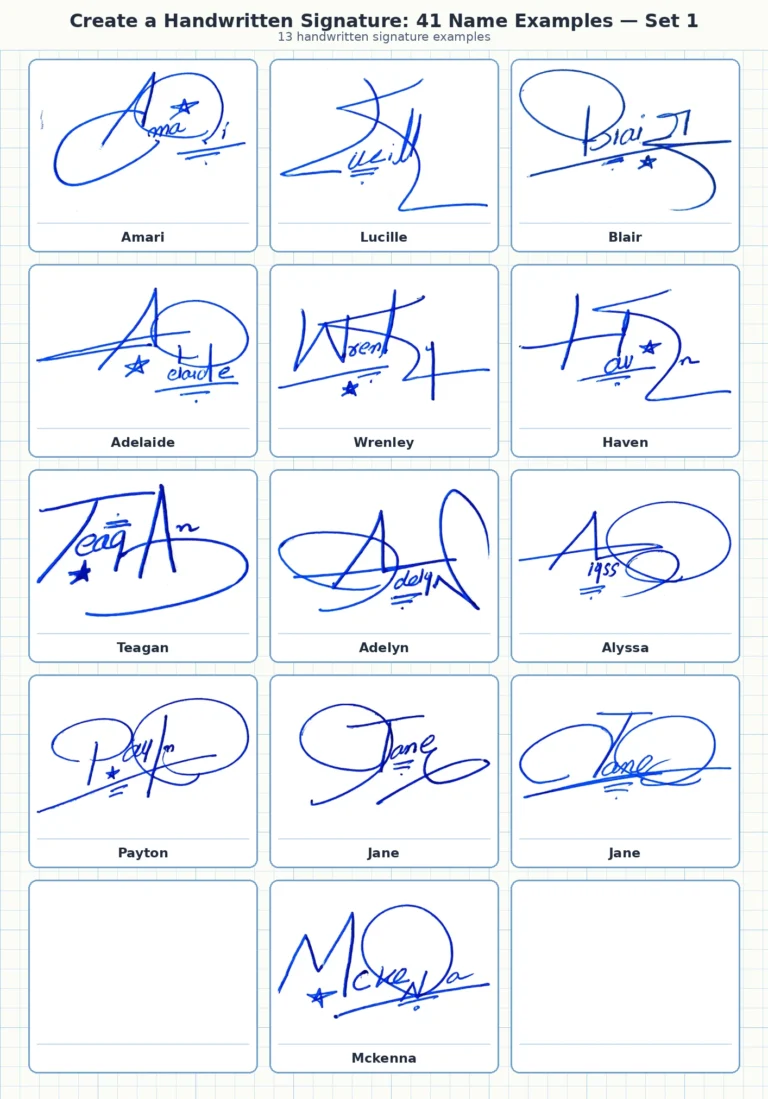
View the signature at the approximate size it will appear in a document. Tiny dots, stars and double loops may look attractive in a large preview but merge together when reduced. For everyday use, preserve one strong initial, a clear direction of movement and a controlled ending.
If the design itself still feels unresolved, compare cursive, initial-based, minimalist and underlined signature styles before editing the image further.
Common signature image problems and fixes
| Problem | Likely cause | Practical fix |
|---|---|---|
| White or grey rectangle | Background was not made transparent | Remove the paper color and export as transparent PNG |
| Jagged curves | The source image was too small or over-compressed | Start from a larger capture and reduce it only at the end |
| Missing thin strokes | Background-removal threshold was too aggressive | Restore the light strokes or use a softer cleanup setting |
| Blurred signature | The file was enlarged beyond its useful size | Return to the original and export at a larger resolution |
| Signature looks stretched | Width and height were changed independently | Lock proportions and resize from a corner |
| Dark halo around ink | Shadow or uneven lighting in the photograph | Retake the photo in diffuse, even light |
File naming, storage and safe reuse
Keep a private master file and create copies for different purposes. A practical naming system might identify the style and color without including sensitive information, for example signature-main-blue.png. Store it in a protected folder rather than leaving it in a public downloads directory.
When inserting the image into a document, resize proportionally and check the final exported file. A signature image can be copied like any other image, so it should not be treated as a secret authentication method by itself.
You can begin with the free online signature generator guide, then use the cleanup process here to make the selected version more usable.
Frequently asked questions
What is a signature image creator?
It is a tool or workflow that converts a drawn, typed or photographed signature into an image file. Useful features include cropping, background removal, stroke cleanup and transparent PNG export.
What size should a signature image be?
Create it larger than the size you expect to display, then reduce it in the document. The exact pixel dimensions depend on the source, but the lines should remain smooth at normal viewing size.
Why does my PNG still have a white background?
The file may have been exported without transparency, or the background may only look transparent inside the editor. Reopen the downloaded file over a colored background to verify it.
Can I use a JPG signature?
Yes, but JPG normally keeps a solid background and may introduce compression around fine lines. PNG is usually better when you need transparency.
Should I upload my signature to any website?
Review the site’s privacy and retention information first. Upload only the isolated signature image, not a full confidential document containing personal data.