How to Add a Signature on iPhone: Documents & Email
To add a handwritten signature to a document on iPhone, open the PDF or image in a supported app, tap Markup, tap the Add button, choose Add Signature, sign with your finger, then place and resize the result. To change the automatic email footer in Apple Mail, go to Settings → Apps → Mail → Signature. These are two different kinds of “signature,” so this guide separates them.
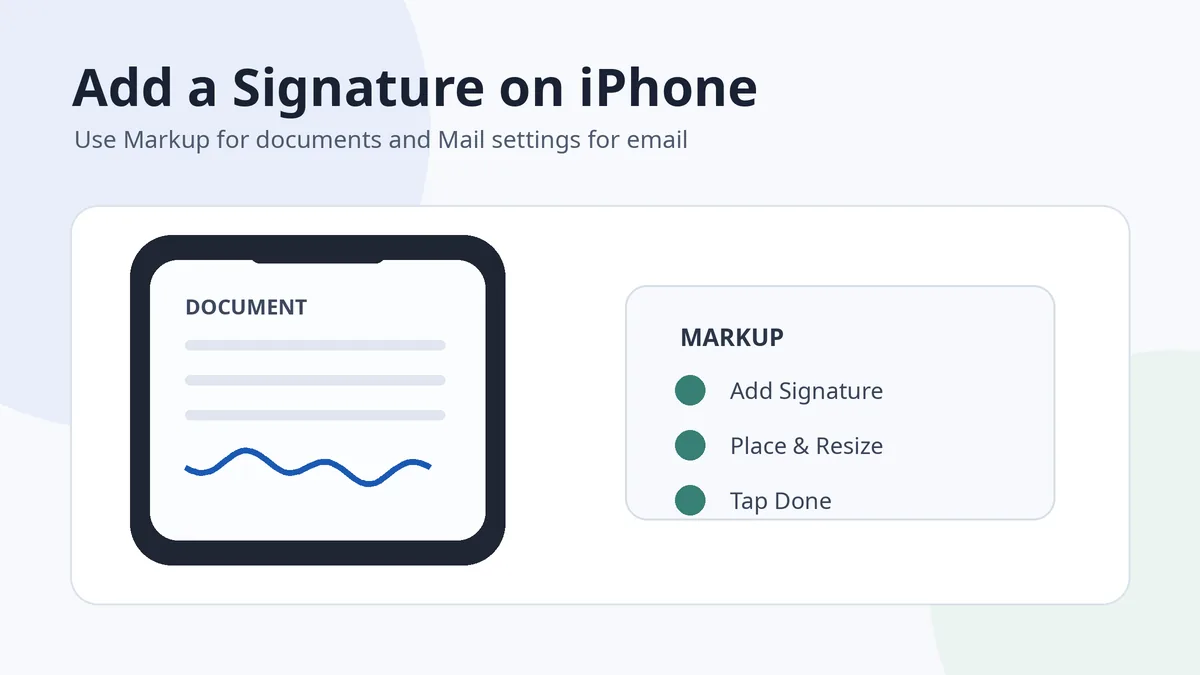
Markup creates a reusable visual signature for documents and images. Apple Mail’s signature setting creates a text footer for outgoing email. Neither should be confused with a certificate-based digital signature or an organization’s authenticated signing portal.
In this guide
- Sign a PDF or image with Markup
- Create and manage saved signatures
- Sign a scanned document in Notes
- Change the Apple Mail signature
- Use Gmail on iPhone
- Protect quality and privacy
How to add a signature on iPhone with Markup
- Open the document or image in a supported app. Files, Notes, Photos and other Apple workflows can expose Markup depending on the item.
- Tap Markup. The icon usually looks like a pen tip.
- Tap the Add button.
- Choose Add Signature.
- Sign your name with a finger. Tap Clear and try again if the movement feels cramped.
- Tap Done.
- Move and resize the signature. Use the handles to fit the intended field without covering nearby text.
- Save or share the completed copy. Reopen it once to confirm the signature remains visible.
Apple’s current iPhone Markup signature guide documents this process and notes that saved signatures can be reused.
Make a finger-drawn signature look more natural
- Turn the iPhone sideways when the signing area feels too narrow.
- Use one confident movement rather than slowly tracing every letter.
- Simplify tiny details that become unstable on a glass screen.
- Try initials or a short version when a field is very small.
- Use a stylus only if it gives better control. The goal is repeatability, not maximum decoration.
Create, reuse or delete saved iPhone signatures
After you create a Markup signature, iPhone can save it for future documents. You can keep more than one version—for example a full name and initials—then choose the one that fits the field. In Markup, open Add Signature again to add another signature or manage saved ones.
- Use distinct versions for distinct needs. A compact initials mark works better in a small box than a squeezed full name.
- Delete failed drafts. Several near-identical saved signatures make selection confusing.
- Review shared devices. Remove reusable signatures when other people can access the device.
- Do not use a saved image where stronger verification is required. Follow the sender’s specified signing service.
Sign a scanned document in Notes
The Notes app can scan paper documents and then open them in Markup. Apple’s current process is: scan the document, open the scan, tap Markup, choose Add → Signature, add a saved or new signature, adjust its size and position, then tap Done.
Apple’s official scan-and-sign instructions are useful when the document begins on paper rather than as a PDF attachment. Check that the scan is flat, complete and readable before adding the signature.
Change the automatic email signature in Apple Mail
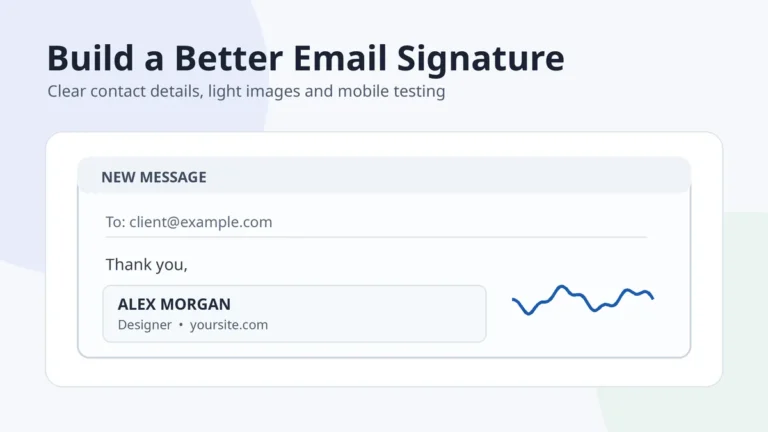
For the email footer in Apple Mail, go to Settings → Apps → Mail → Signature, then edit the text. If several accounts are connected, choose Per Account to set different signatures. Apple currently states that Mail signatures on iPhone are text-only.
| Email signature element | Recommended approach |
|---|---|
| Name | Use the name recipients recognize |
| Role or organization | Include only when relevant |
| Phone or website | Choose one useful contact path |
| Long disclaimer | Use only when required by policy |
| Handwritten image | Do not rely on this in Apple Mail’s text-only iPhone setting |
For a fuller professional layout created on desktop email clients, see how to make an email signature. Apple’s current path is documented in its Mail settings guide.
Set a Gmail mobile signature on iPhone
The Gmail app has its own setting. Open Menu → Settings, then under Compose and Reply choose Signature settings, turn on Mobile Signature and enter the text. This is separate from Apple Mail and separate from the rich desktop Gmail signature.
See Google’s current Gmail for iPhone signature instructions, or the complete Gmail signature guide on this site.
Protect signature quality and privacy on iPhone
- Save the signed document as a new copy. Keep the unsigned original available.
- Inspect at normal zoom. A signature can look smooth while enlarged but broken at actual size.
- Use the intended field. Do not cover dates, printed names or form instructions.
- Avoid public uploads for sensitive files. Use local Markup or the organization’s approved service.
- Keep reusable signature images private. A visual mark is personal data even though it is not a complete security system.
- Verify recipient requirements. Some forms accept Markup; others require authentication or a certificate.
To create a transparent reusable image rather than signing directly in Markup, use tools under /signature-tools/, then follow the signature image cleanup guide.
On iPhone, choose the workflow by purpose: Markup for a visual document signature, Mail settings for an email footer, and an approved signing service when identity verification matters.
Frequently asked questions
Where is Add Signature on iPhone?
Open a supported document or image, tap Markup, tap the Add button, then choose Add Signature. The exact entry point varies slightly by app.
Does iPhone save my handwritten signature?
Yes. Markup can save signatures for reuse, and you can create multiple versions or delete saved ones.
Can I sign a PDF in the Files app?
When the PDF opens with Markup support, use Markup → Add → Add Signature, place the mark and save the completed copy.
Can I add an image to the Apple Mail signature on iPhone?
Apple’s current iPhone guide states that Mail signatures are text-only. Create a simple text footer in Settings → Apps → Mail → Signature.
Is a Markup signature legally the same as a digital certificate?
No. Markup adds a visible signature. A certificate-based digital signature or authenticated e-signing platform provides different verification features.