How to Sign a Word Document: 4 Practical Methods
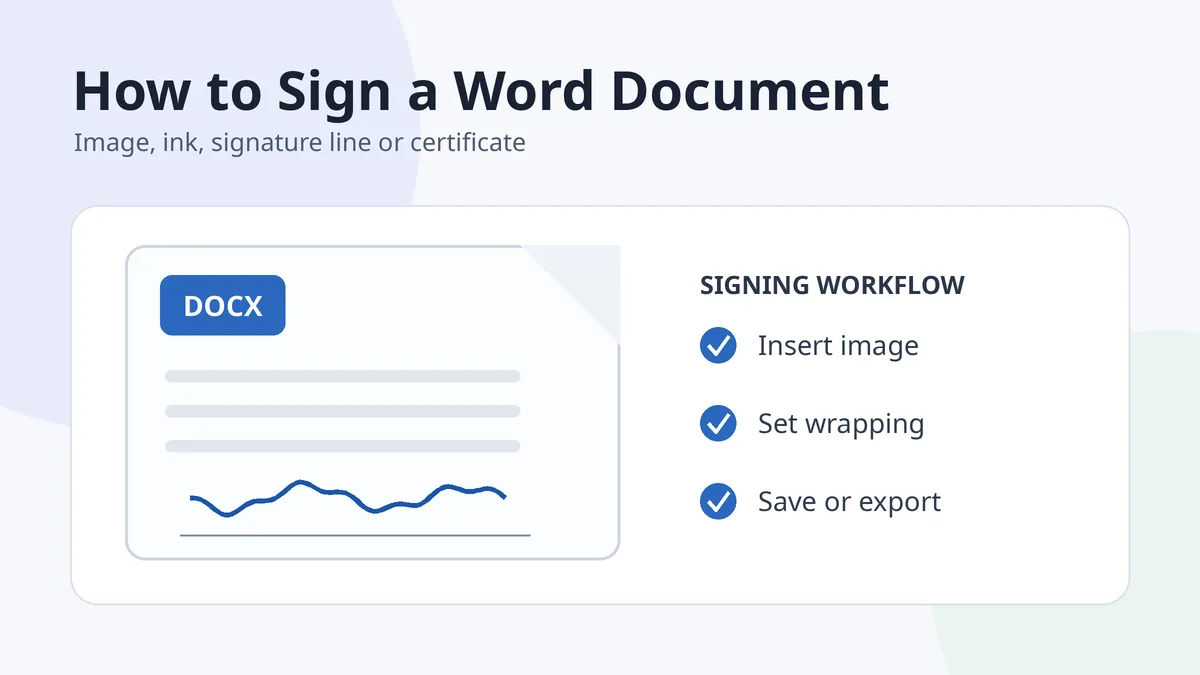
The simplest way to sign a Word document is to insert a clean image of your handwritten signature, resize it and set the text wrapping so it sits correctly on the signature line. Word also supports inking on compatible devices, reusable signature blocks, signature lines and certificate-based digital signatures. The right method depends on whether you need a visual mark, a reusable document element or formal verification.
Before editing the document, save a duplicate. That protects the original formatting and gives you a clean version if the signature shifts, the image becomes blurry or the recipient requests a different signing method.
In this guide
- Compare the four methods
- Insert a handwritten signature image
- Use ink or a signature line
- Add a digital signature
- Fix common layout problems
Four ways to sign a Word document
| Method | Best for | Important limitation |
|---|---|---|
| Insert a signature image | Routine documents and reusable handwritten appearance | The image alone does not provide certificate verification |
| Draw with an ink tool | Touchscreen or pen-enabled devices | Availability and controls vary by Word version and device |
| Add a signature line | Documents that should visibly request a signer | The line and the actual signing method are separate |
| Apply a digital signature | Workflows requiring identity and integrity validation | Requires a digital ID or certificate and compatible desktop features |
Method 1: Insert an image of your handwritten signature
- Create a clean signature file. Sign on white paper, photograph or scan it, remove the background and crop closely.
- Place the cursor on the signature line. Keep the document at its normal page layout before inserting the image.
- Choose Insert → Pictures. Select the transparent signature file from your device.
- Resize from a corner. This keeps the height and width proportional.
- Adjust text wrapping. “In Front of Text” gives free placement; “Square” or “Tight” can work when the signature belongs beside text.
- Save a new copy. Export to PDF if the recipient needs a fixed layout that is less likely to shift.
Microsoft’s official Word signature instructions also explain how to save the picture and accompanying typed details as a reusable Quick Part or AutoText entry in supported desktop versions.
Create a reusable signature block
A reusable signature block can combine the image with your typed name, title or contact details. Keep the block compact and avoid including sensitive information in every document. After selecting the image and accompanying text, supported desktop versions of Word can save the selection to Quick Parts or AutoText for later insertion.
Prepare the visual file with the transparent signature image guide, or use the drawing and cleaning options in the signature tools hub.
Method 2: Draw with an ink tool or add a signature line
Draw with a pen or touchscreen
On devices and Word versions that provide inking, choose a pen tool and draw the signature directly. Use a dark, medium-width pen and zoom in before signing. A mouse can work, but it often produces stiff turns and uneven loops compared with a stylus or touchscreen.
Insert a visible signature line
A signature line is useful when the document should clearly show who is expected to sign. In supported desktop versions, use the signature-line command, enter the signer details and place the line in the correct location. Microsoft notes that Word for the web does not have the same signature command; you can still insert a scanned signature as an image.
See Microsoft’s current documentation for adding a signature line and the separate note about Word for the web.
Method 3: Add a certificate-based digital signature
Use a digital signature when the workflow requires a digital ID, signer verification and evidence that the file has not changed. This is different from inserting a picture. In compatible Microsoft 365 desktop applications, a signer can sign a signature line using a digital certificate, an ink mark or a selected signature image.
- Complete the document first. Changes after signing can affect the signature status.
- Use the certificate accepted by the organization. A self-created ID may not satisfy every recipient.
- Confirm the signer name and document state. Review the entire file before applying the signature.
- Keep the final signed copy. Do not continue editing the same version.
Microsoft’s digital-signature documentation covers the supported certificate workflow.
Fix common Word signature problems
| Problem | Likely cause | Practical fix |
|---|---|---|
| Signature pushes text onto another line | Image is inline with text | Change wrapping or place the signature inside a simple one-cell layout area |
| Image looks blurry | Low-resolution screenshot or excessive enlargement | Use a clean original and reduce it rather than scaling a tiny image up |
| White rectangle covers the signature line | Opaque background | Use a transparent PNG |
| Signature moves on another computer | Fonts, margins or wrapping behave differently | Export the finished document to PDF and check the result |
| Recipient asks for verified signing | A pasted image is not sufficient | Use the required e-signature or certificate-based process |
In Word, good signing is mostly a layout problem until the recipient requires identity verification. Solve those two needs separately.
When the final layout matters more than continued editing, convert the completed document to PDF and follow the PDF signing guide.
Frequently asked questions
Can I sign a Word document without printing it?
Yes. Insert a transparent signature image, draw with an ink tool on a compatible device, use a signature line, or apply a supported digital signature.
Can I add a signature in Word for the web?
Word for the web can insert a scanned signature picture, but Microsoft notes that it does not provide the same signature command available in desktop Word.
Why does my signature move when I edit the document?
Its wrapping and anchor settings may be tied to nearby text. Finish the layout first, choose an appropriate wrapping mode and export the final copy to PDF when fixed positioning matters.
Is a signature image legally equivalent to a digital signature?
Not automatically. A picture shows a visual mark; a digital signature uses a certificate and cryptographic validation. Acceptance depends on the document and applicable requirements.
What image format is best for a handwritten signature in Word?
A transparent PNG is usually the most practical because it preserves thin strokes and avoids a white background. Keep a high-quality master and insert a reasonably sized copy.