How to Sign a PDF Document: 3 Reliable Methods
To sign a PDF document, first decide what the recipient actually requires: a visible handwritten-style signature, an e-signature workflow with an audit trail, or a certificate-based digital signature. For a routine form, you can usually add a drawn, typed or uploaded signature, place it in the correct field and save a new copy. Sensitive or formally regulated documents may require a verified signing service or digital certificate instead.
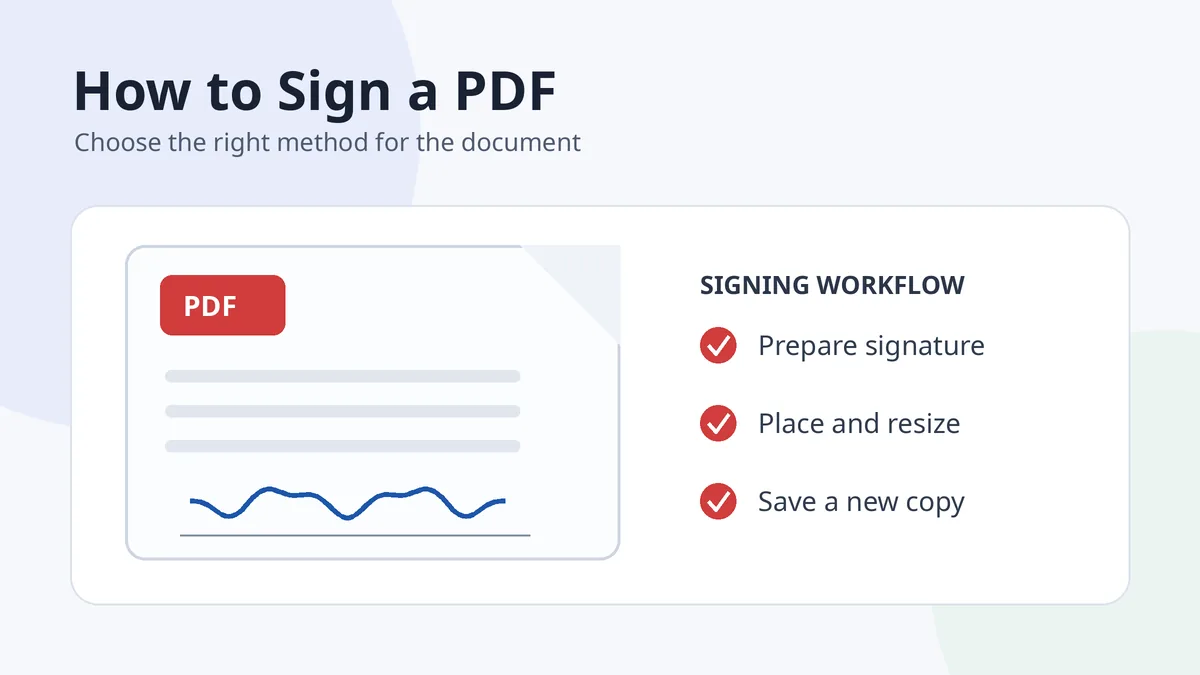
The steps below separate those methods so you do not use a simple signature image where identity verification is expected—or pay for a complex signing workflow when a basic form only needs a visible mark.
In this guide
- Choose the correct signing method
- Sign with Acrobat or a PDF editor
- Use an online signing service
- Add a certificate-based digital signature
- Check the file before sending
Choose the correct way to sign a PDF document
| What the document needs | Suitable method | What it proves |
|---|---|---|
| A visible signature on a routine form | Draw, type or upload a signature in a PDF editor | Shows a mark and your intent in the document context |
| A tracked approval process | E-signature service with signer authentication and audit records | Adds process evidence such as timestamps and verification steps |
| Certificate-based authenticity and tamper evidence | Digital signature using a trusted certificate | Links the signer identity and document integrity through cryptography |
A picture of a signature and a certificate-based digital signature are not interchangeable. The correct choice depends on the sender, organization, jurisdiction and document type. This guide is practical information, not legal advice.
Method 1: Sign a PDF in Adobe Acrobat or another PDF editor
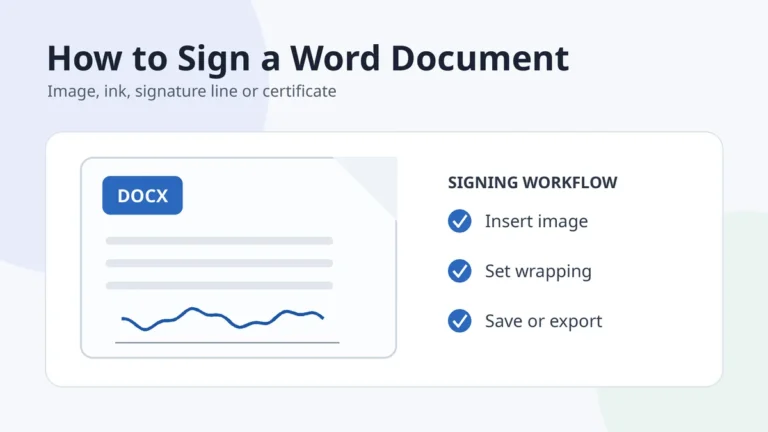
Adobe’s current Acrobat instructions use the E-Sign tools: add a signature, choose a typed, drawn or uploaded version, place it in the document and save the result. Menu wording may vary slightly by app version, but the workflow is consistent.
- Open the original PDF. Work from a clean copy so you can return to the unsigned file if needed.
- Open the signing or fill-and-sign tools. In Acrobat, look for E-Sign or Add signature.
- Create or select your signature. Draw it, type a styled version, or upload a transparent image.
- Place it in the intended field. Resize from a corner so the proportions do not stretch.
- Review every page. Check initials, dates, checkboxes and any required text fields.
- Save as a new file. Use a clear filename such as agreement-signed.pdf instead of overwriting the original.
For the current Acrobat interface, consult Adobe’s official e-sign instructions. If your handwritten image has a white box around it, prepare a cleaner file with the signature image creator guide before inserting it.
Make the signature image look natural
- Use a transparent background so the PDF remains visible around the ink.
- Crop away empty space without cutting off loops, dots or long exit strokes.
- Keep the image sharp but not enormous; excessive resolution only increases file size.
- Match the field height rather than enlarging the signature across surrounding text.
- Avoid screenshots that include paper shadows, camera perspective or a grey rectangle.
Method 2: Use an online PDF signing service
An online service can be convenient when you need to sign from a browser, invite other people or keep an audit trail. The main trade-off is that you are uploading the document to a third party.
- Check the sender’s preferred service. A link supplied by the organization is usually safer than choosing an unknown site.
- Read the privacy and retention information. Do not upload sensitive files merely because a tool is free.
- Upload the PDF and identify the signer. Some workflows require email verification, a code or account access.
- Add the signature and required fields. Review the final appearance before confirming.
- Download the completed copy and receipt. Keep any completion certificate or audit record provided by the service.
For a simple personal signature image, use the tools under /signature-tools/. For a formal multi-party agreement, use the signing platform requested by the organization rather than treating a PNG as a complete verification system.
Method 3: Add a certificate-based digital signature
A certificate-based digital signature is appropriate when the workflow requires verified identity and evidence that the PDF has not changed after signing. In Acrobat, Adobe currently directs users to All tools → Use a certificate → Digitally sign, then to draw the signature field and select or configure a digital ID.
- Use a trusted digital ID accepted by the recipient or organization.
- Confirm the certificate name and validity before signing.
- Save the signed file after applying the certificate. Later edits may invalidate the signature status.
- Do not confuse appearance with validation. A digital signature may display a handwritten image, but its security comes from the certificate and cryptographic verification.
Adobe’s official digital-signature guide explains the certificate workflow in its current interface.
Final checks before you send the signed PDF
- Open the saved copy again to confirm that the signature and form fields remain visible.
- Check page count and orientation. Make sure no page was omitted or rotated unexpectedly.
- Inspect the signature at 100% zoom. Thin strokes should not look broken or pixelated.
- Confirm the recipient’s requirements. Some organizations reject pasted images and require their own signing portal.
- Send only the final version. Remove drafts and unrelated personal information from the attachment.
The safest workflow is not the most complicated one; it is the method that matches the document’s actual verification requirement.
Frequently asked questions
Can I sign a PDF with a picture of my handwritten signature?
Yes, many routine PDFs allow an inserted signature image. Use a transparent, closely cropped file and confirm that the recipient accepts this method.
Is a typed name the same as a digital signature?
No. A typed name can be an electronic-signature method in context, while a digital signature uses a certificate and cryptography to verify identity and document integrity.
Why does my signature have a white background in the PDF?
The uploaded file probably has an opaque background. Remove the background and save a transparent PNG before inserting it.
Should I sign the PDF online or offline?
Offline editing keeps the file on your device. An online service may add convenience, signer tracking or authentication. Choose according to the sensitivity and workflow requirements.
Can I edit a PDF after digitally signing it?
Some edits can invalidate or alter the signature status. Finish the document before applying a certificate-based digital signature and keep the signed final copy unchanged.