How to Create a Signature in Adobe Acrobat
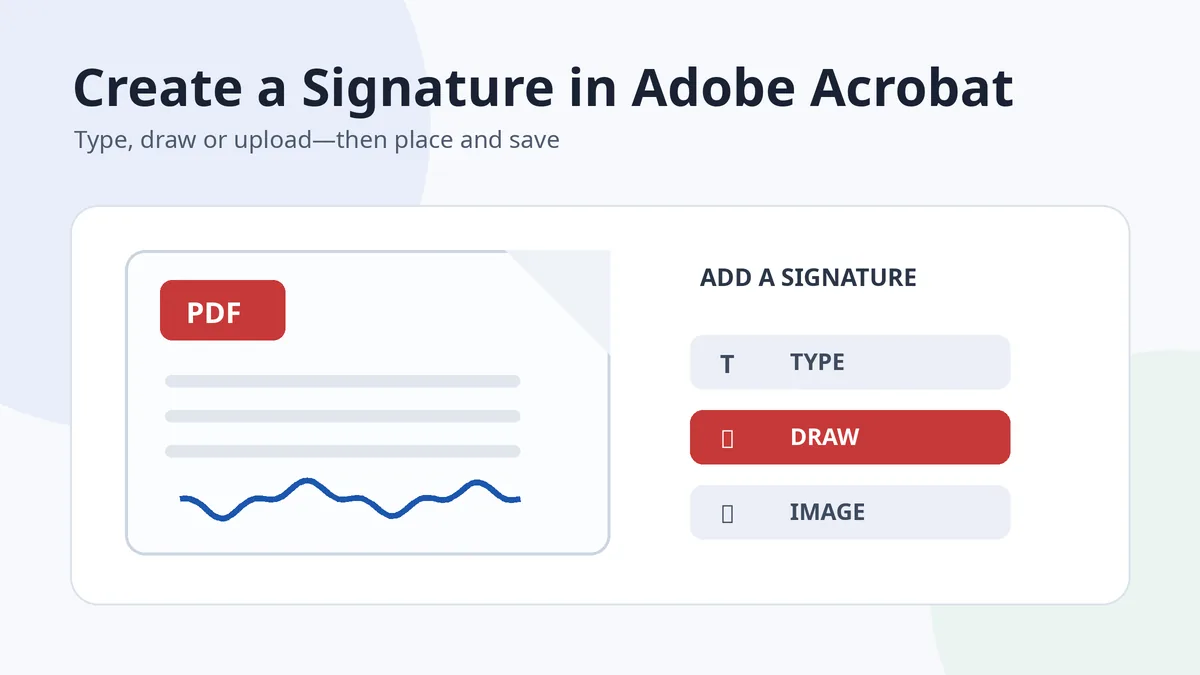
To create a signature in Adobe Acrobat, open the PDF, choose E-Sign, select Add signature, then type, draw or upload your signature. Place it in the correct field, resize it without stretching, and save a new copy of the document. If the recipient requires identity verification rather than only a visible mark, use Acrobat’s certificate-based digital-signature workflow instead.
The distinction matters. Acrobat can add an ordinary electronic signature that looks like handwriting, while a certificate-based digital signature also helps verify signer identity and whether the PDF changed after signing. This guide explains both without treating them as the same thing.
In this guide
- Choose the correct Acrobat method
- Create an e-signature in Acrobat
- Get a cleaner handwritten result
- Edit or replace a saved signature
- Use a certificate-based digital signature
- Fix common problems
Choose the correct signature method in Adobe Acrobat
| Acrobat option | What it creates | Best use |
|---|---|---|
| Type | Your name rendered in a signature-style typeface | Fast completion when a typed e-signature is accepted |
| Draw | A line created with a mouse, trackpad, finger or stylus | A more personal handwritten appearance |
| Image | An uploaded scan or photo of your paper signature | Preserving a signature you already write naturally |
| Use a certificate | A cryptographically signed PDF linked to a digital ID | Formal workflows requiring signer and document validation |
For a routine permission form, an uploaded or drawn signature may be enough. For regulated, high-value or organization-controlled documents, follow the sender’s specified signing process instead of assuming that an image is sufficient.
How to create an e-signature in Adobe Acrobat
Adobe’s current desktop instructions place ordinary signing under E-Sign. Interface wording can vary slightly by platform and update, but the core process is stable.
- Open the PDF in Acrobat. Save a clean duplicate before adding anything.
- Select E-Sign. Choose the option to fill and sign the document yourself.
- Select Add signature. Acrobat opens the available creation choices.
- Choose Type, Draw or Image. Use the option that matches the result you need.
- Apply the signature. Click or tap the intended field to place it.
- Resize from a corner. Keep the original proportions so the signature does not look compressed or stretched.
- Check every required field. Add dates, initials and other form information before saving.
- Save a new copy. Use a clear filename such as agreement-signed.pdf.
Adobe’s official Acrobat e-signature instructions show the current E-Sign workflow. For a broader comparison of PDF-signing methods, see how to sign a PDF document.
Type, draw or upload: which produces the best result?
- Type is the quickest, but it is a font-based representation rather than your natural pen movement.
- Draw feels more personal on a touchscreen or stylus. A mouse or trackpad often creates shaky curves.
- Upload is usually the most faithful when you already have a repeatable paper signature and prepare the image correctly.
- A certificate is about verification, not artistic appearance. It can display a visual signature, but its value comes from the digital ID.
How to get a cleaner handwritten signature in Acrobat
A poor source image will still look poor after Acrobat inserts it. Prepare the signature before upload:
- Sign with dark blue or black ink on plain white paper. Use a medium stroke that remains visible after resizing.
- Photograph or scan in even light. Avoid shadows, folds and camera perspective.
- Crop close to the ink. Leave a small margin around loops, dots and long exit strokes.
- Remove the white background. Save a transparent PNG so the PDF shows naturally around the signature.
- Keep a private master copy. Export a smaller working version for routine document use.
Use the signature image creator guide to clean the background, or start with tools under /signature-tools/. Do not upload another person’s signature or copy a design exactly from a gallery.
Edit, remove or replace a saved Acrobat signature
Acrobat can remember a signature for later use. When the stored version is outdated, poorly drawn or attached to the wrong style, open E-Sign, remove the current saved signature, and add a new one. Adobe’s official modify e-signature instructions describe the current replacement process.
- Replace rather than repeatedly resizing a bad source. A clean new file gives a better result.
- Check shared devices. Remove saved signatures when you do not control who can access the computer.
- Create initials separately when needed. Do not shrink a long full-name signature into a tiny initials field.
- Review cloud storage choices. Understand where the signature is saved before using a work or public device.
When to use a certificate-based digital signature
Use a certificate workflow when the document or organization asks for a digital ID, certificate signature, signer validation or tamper evidence. In current Acrobat desktop guidance, the path is All tools → Use a certificate → Digitally sign. You then define the signature area and select or configure a digital ID.
Adobe’s digital-signature guide covers that separate process. Finish the document before applying the certificate, because later changes may alter or invalidate the signature status.
Fix common Adobe signature problems
| Problem | Practical fix |
|---|---|
| Signature has a white box | Remove the image background and upload a transparent PNG |
| Drawn signature looks shaky | Use a touchscreen or stylus, or upload a paper signature instead |
| Signature is blurry | Start from a sharper source and avoid enlarging a small image |
| Signature is stretched | Resize from a corner and preserve the aspect ratio |
| Wrong saved signature appears | Remove or replace it in the E-Sign signature controls |
| Recipient rejects the PDF | Confirm whether their workflow requires a signing portal or certificate rather than an image |
In Acrobat, appearance and verification are separate decisions: choose the signature that looks right, then use the security level the document actually requires.
Frequently asked questions
Can I create a handwritten signature in Adobe Acrobat?
Yes. Draw with a mouse, touchscreen or stylus, or upload a cleaned image of a signature written on paper. Uploading usually preserves natural handwriting more accurately.
Is Add signature in Acrobat free?
Basic availability depends on the Acrobat product, platform and account. Acrobat Reader commonly supports filling and ordinary signing, while advanced editing and some workflows may require other plans.
Why does Acrobat save my signature?
Saving lets you reuse the mark in later documents. On a shared device, remove the stored signature after use and review whether it is stored locally or in your Adobe account.
Is an uploaded signature image a digital signature?
No. It is a visible electronic signature image. A certificate-based digital signature uses a digital ID and cryptography to support identity and integrity checks.
What file type should I upload to Acrobat?
A transparent PNG is usually the most practical choice because it keeps the ink visible without placing a white rectangle over the PDF.